SDN specification
VoIP Software-Defined Networking Appliance.
The VoiceTel SDN Appliance intelligently controls the network from the end-user's LAN and delivers unobstructed communications to the VoiceTel core, with optional in-call High Availability (HA). This is the white paper, requirements, installation, and configuration reference.
White paper
Firewalls obstruct IP communications, and no two are configured alike.
Problem
Firewalls are devices that inhibit or prevent the flow of IP communications. When not optimally configured, they can cause:
- Dropped calls
- No audio
- One-way audio
- Unclear audio
- Rejected calls
Even perfectly configured end-user firewalls can occasionally suffer from these issues, since network assets beyond the end-user's control (routers, modems, upstream policies) can affect IP communications.
Background
VoiceTel provides free end-user support to address firewall and traversal issues. However, each hardware vendor is unique and there is no standard for configuration options or naming conventions. Some firewalls also react in unexpected ways across firmware and model variations, making proper configuration of unobstructed IP communications challenging.
Solution
An appliance in the LAN with an encrypted tunnel to VoiceTel.
VoiceTel offers a VoIP SDN Appliance as a service to address obstructed IP communications. Placed in the end-user's LAN, it automatically establishes an encrypted IP tunnel to the VoiceTel infrastructure. The end-user VoIP infrastructure registers directly to the appliance and benefits from unfettered connectivity without any modification of LAN routing policies. Optionally, the appliance follows intelligent routing to maintain in-call HA when redundant connectivity exists, for full Business Continuity Management (BCM).
Requirements
A Raspberry Pi, a MicroSD card, and a LAN that allows outbound connections.
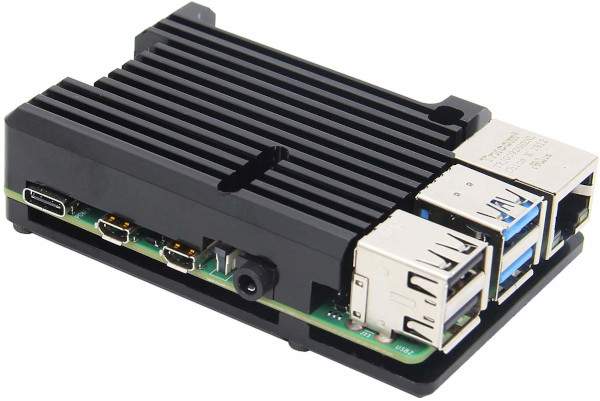
Hardware: a Raspberry Pi 3 Model B+ or newer with an 8 GB or larger MicroSD card. The VoiceTel VoIP SDN appliance minimally requires that the end-user's LAN have DHCP enabled, allow outbound connections, keep UDP timeouts greater than 10 seconds, and host the appliance on the same LAN as your endpoint.
| Requirement | Specification |
|---|---|
| Hardware | Raspberry Pi 3 Model B+ or newer |
| Storage | 8 GB or larger MicroSD card |
| DHCP | Enabled on the LAN |
| Outbound connections | Allowed |
| UDP timeouts | Greater than 10 seconds |
| Placement | Same LAN as your endpoint |
Installation
Write the image, boot the appliance, and have its MAC address authorized.
Download the VoiceTel VoIP SDN image, verify the MD5 sums, and write it to your 8 GB or larger MicroSD card. Place the card in the appliance and boot it. We must authorize the appliance's MAC address to connect to our network, so contact us after the device has been booted for the first time. You can optionally purchase a preconfigured and authorized device that ships ready to deploy. If you don't already have an account, sign up here.
Write the image with the platform-appropriate tool: macOS instructions · Windows instructions · Linux instructions.
8e1a4d6b8bda4c44d8e33922868b16b6  sdn.img
93827769dd93abc1e8f641ca532a6567  sdn.zip
Configuration
Register with Digest authentication, then choose how each DID routes.
The endpoint must register to the LAN address of the SDN appliance using Digest authentication. Routing of a DID can be one of the following: User sends the call to the account username; SDN sends the call to the DID number.
- Authentication Digest
- DID routing: User User
- DID routing: SDN SDN
PBX configuration
Allow inbound calls from the appliance on your PBX, then reload.
Asterisk and FreeSWITCH take a one-line reload after the configuration change; FreePBX and FusionPBX apply the same change from their web interfaces.
asterisk -rx 'sip reload'fs_cli -x 'reloadacl'Per-platform steps
-
Asterisk
Change
allowguest=yesin the[general]section ofsip.conf. Then runasterisk -rx 'sip reload'. -
FreePBX
Change Allow Anonymous Inbound Calls to Yes in the Asterisk SIP Settings module, then click Apply Config.
-
FreeSWITCH
Add the IP address of the appliance as an
allow nodein thedomainslist ofacl.conf.xml. Then runfs_cli -x 'reloadacl'. -
FusionPBX
Go to
Advanced→Access Controls. Click the edit icon fordomains. Undernodes, click the plus icon and then save. Go toStatus→SIP Statusand click reloadacl.
Ready to deploy?
The SDN appliance is $10.00 per appliance per month, billed alongside your VoiceTel account. Volume discounts apply at scale. It's the most useful RPi you'll ever buy.